🔑 How to Reset Your Password on FlashLearners
Forgot your password? No worries! Follow this simple guide and you’ll be back in your account in minutes.
First — The Easy Case
If you’re just logged out but still remember your password, simply open the app and log in with your email and password as usual. That’s it!
😅 Forgot Your Password? Follow These Steps
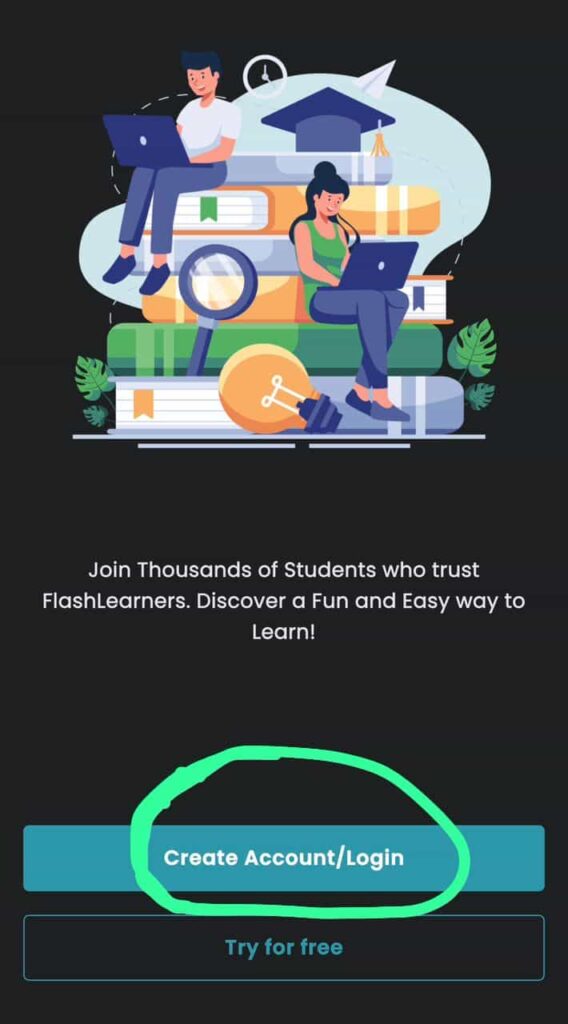
Open the App
Launch FlashLearners and tap Create Account / Login on the home screen.
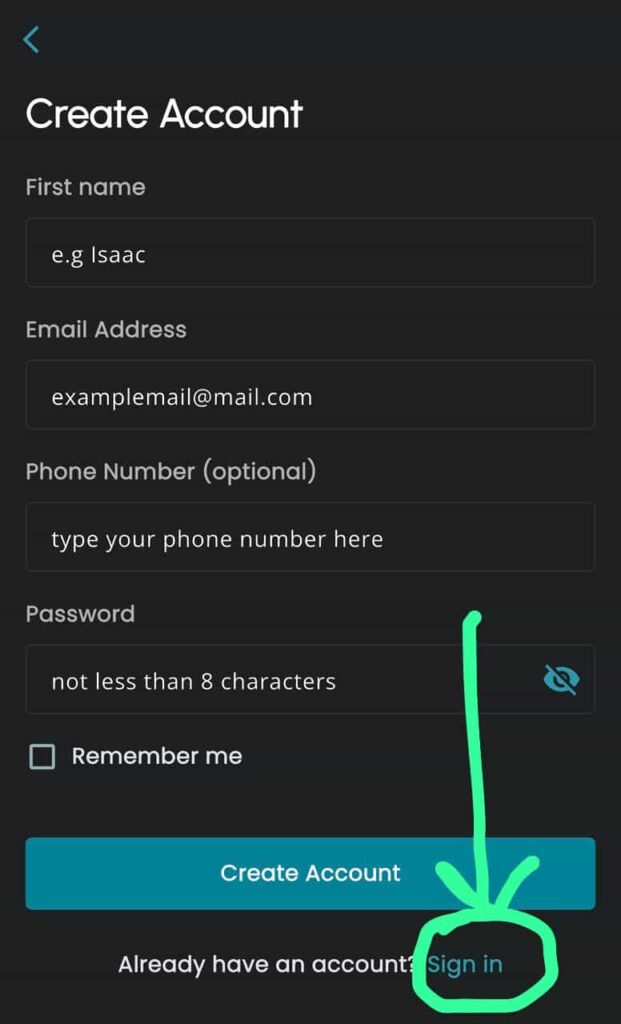
Tap “I already have an account? Sign in”
Look for this option at the bottom and tap it.
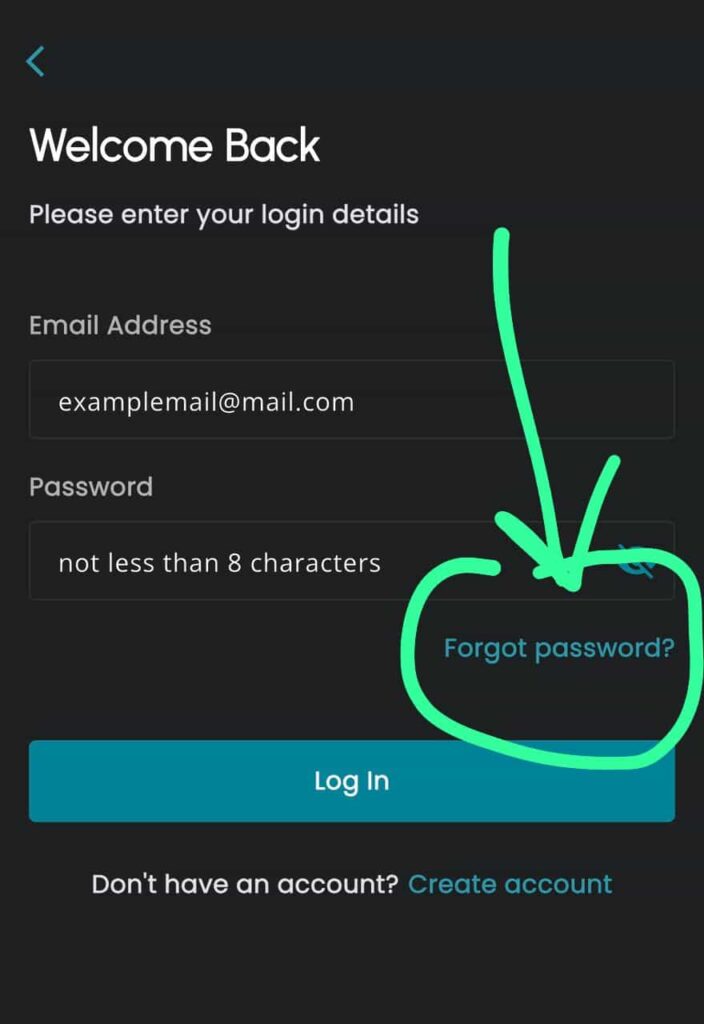
Tap “Forgot Password?”
Since you can’t remember your password, this is the magic button. 🪄
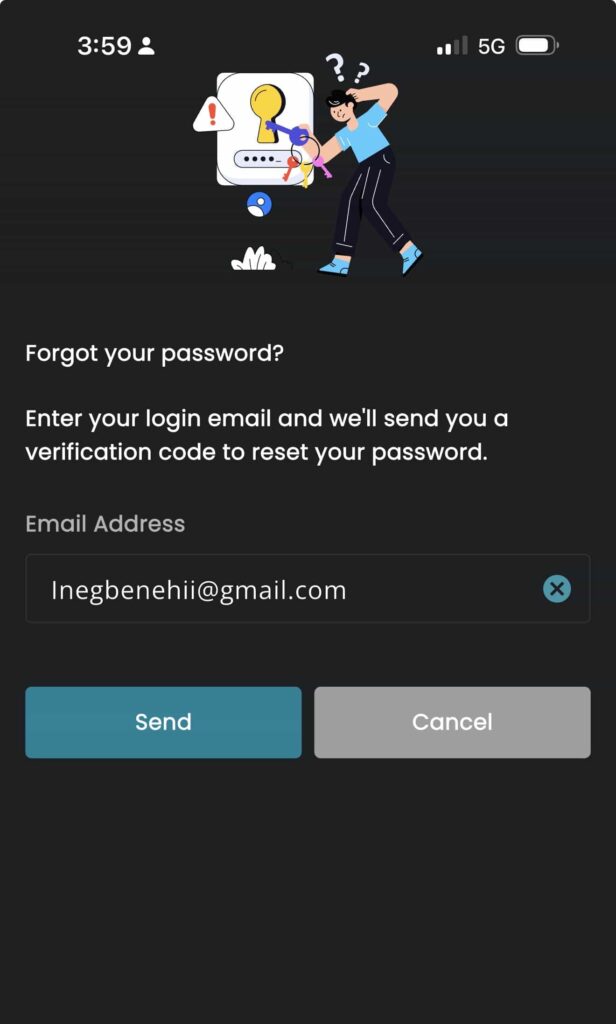
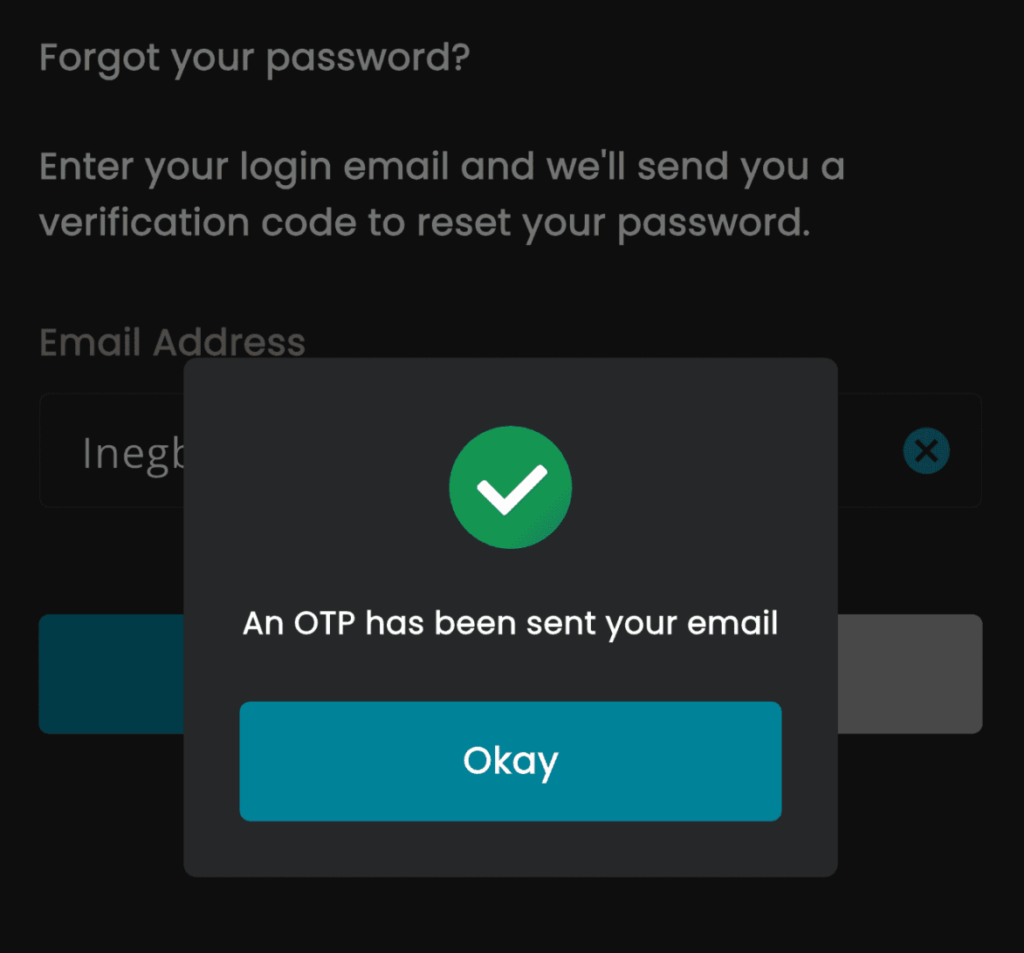
Enter Your Email
Type the email address linked to your FlashLearners account, then tap Send.
OTP Sent Confirmation
You’ll see a message saying “OTP has been sent to you.”
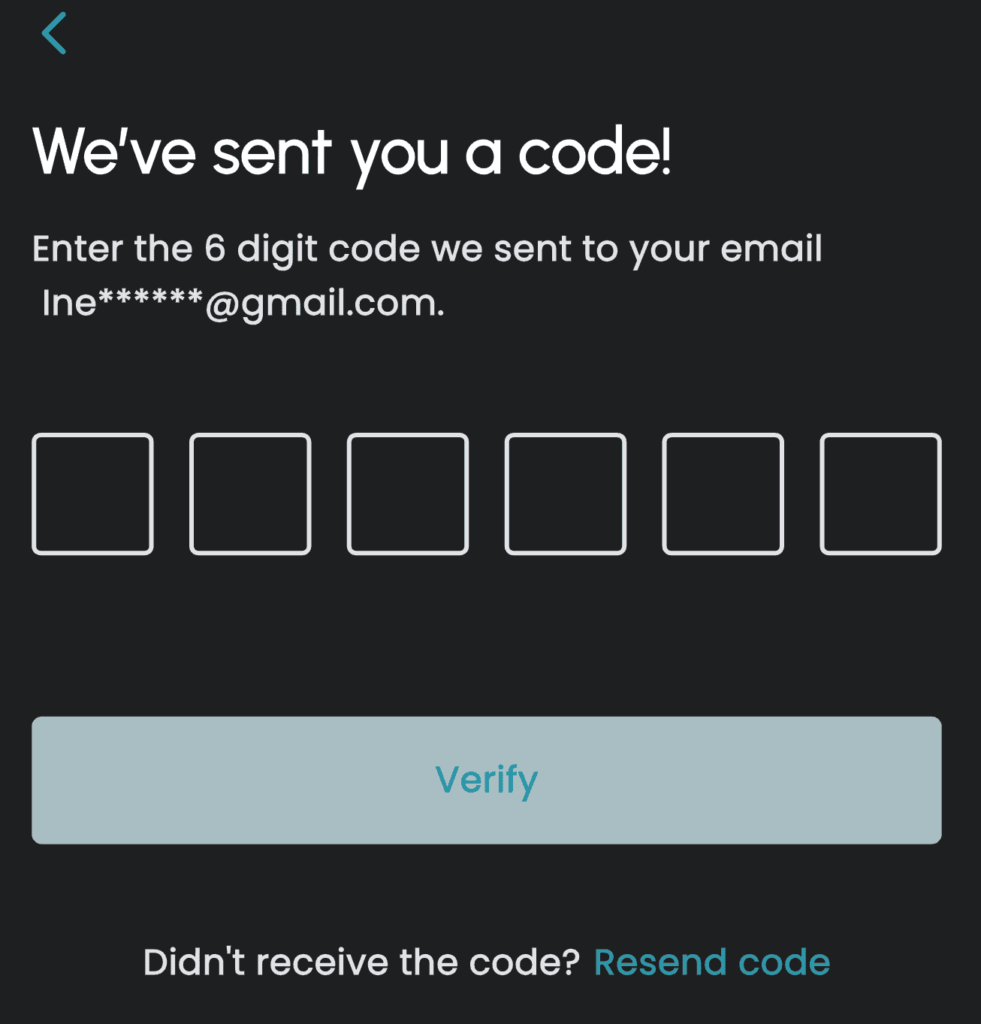
Check Your Email
Open your email inbox and find the message from FlashLearners. Copy the OTP code inside.
Paste the Code in the App
Go back to FlashLearners and paste the OTP code where it’s asked.
Create a New Password
Pick something strong and easy for you to remember (but hard for others to guess). 😉
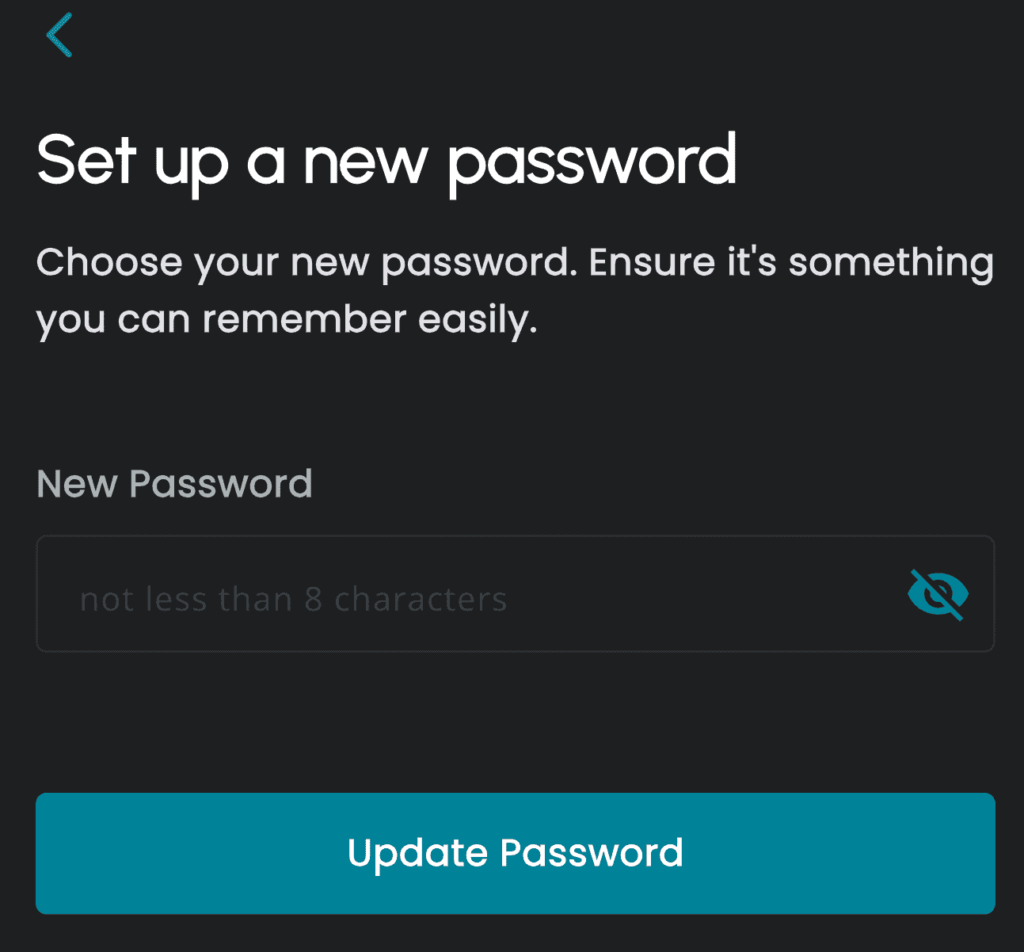
Tap “Update Password”
Confirm your new password to save the change.
You’re Done! 🎉
Now log in with your email and brand-new password. Welcome back!
Still Having Trouble? 🤔
If the OTP isn’t reaching your inbox, don’t stress. Tap the WhatsApp button below and send us:
- 📧 Your registered email address
- 🔒 The new password you’d like to use